
Office Ergonomics Guide: Comfort Standards for Employees
Short answer: Office ergonomics means designing the workplace to fit the employee: an adjustable chair with lumbar support and armrests, a desk at the right or adjustable height, the screen at eye level and an arm’s length away, around 500 lux of glare-free light, control of noise and temperature, and regular movement during the day. Elite Premier designs workstations and supplies chairs to these standards.
An office worker spends on average eight hours or more a day sitting in front of a screen, close to two thousand hours a year. When the workplace is poorly set up, the results build up gradually: back, neck and shoulder pain, eye strain, headaches and loss of focus, followed by more absence and lower productivity. This is where office ergonomics comes in: the science of designing the workplace to fit the human body and the way people work, rather than forcing people to adapt to an unsuitable space. In this guide we explain practical comfort standards for the office and how your company can apply them when choosing furniture and planning space.
What does ergonomics mean in the office?
Ergonomics is not just an expensive chair. It is an integrated system covering the chair, desk height, screen and keyboard position, lighting, sound, temperature, space planning and even daily habits such as movement and breaks. The goal is to reduce strain on the body and eyes and keep a natural posture for as long as possible. This matters increasingly in Saudi companies as digital office work grows in technology, financial services and call centres, where staff spend long hours at screens with little movement.
1. The office chair: the starting point
The chair is the most important element of an ergonomic workplace because it defines body posture all day. A good chair is measured not by its looks or price but by how well it adapts to the user. The key adjustments are:
- Seat height: feet flat on the floor and knees at roughly a right angle.
- Seat depth: leaving about a fist’s width between the seat edge and the back of the knee.
- Lumbar support: supporting the natural curve of the lower back, ideally adjustable.
- Armrests: letting the shoulders relax and forearms rest without lifting them.
- Tilt mechanism: allowing posture changes during the day.
International standards test office chairs for dimensions, durability and safety, such as the European EN 1335 and the American BIFMA standards, and it is worth asking about compliance when buying in volume. See the options on our office chairs for companies page.
2. Desk height and work surface
Fixed desks are usually made at around 72–75 cm high, which suits many users once the chair is adjusted correctly. The practical rule is elbows at about 90 degrees when typing, relaxed shoulders and straight wrists. Desk depth should allow the screen at a suitable distance with enough room in front of the keyboard to rest the forearms; a desk that is too shallow forces the screen too close and increases eye and neck strain. See the sizes and types on our office workstations page.
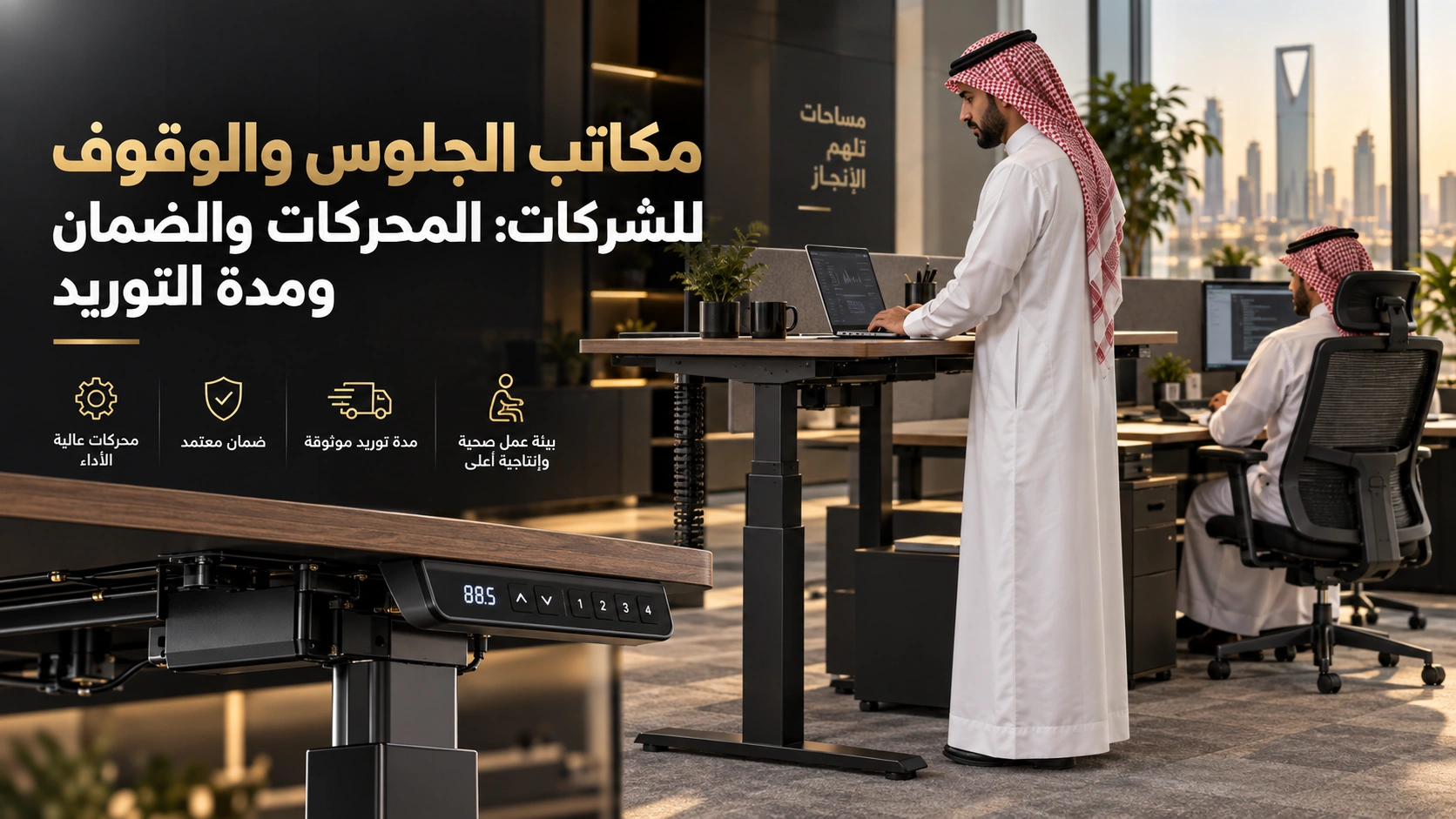
Height-adjustable desks
Sitting continuously for hours is a major cause of fatigue, so many companies are adopting electric sit-stand desks. But standing all day is not the answer either; the idea is regular switching between postures. Before rolling them out across a project, check motor type, load capacity and warranty.
3. Screen and keyboard position
A poorly placed screen is one of the most common causes of neck pain. The top of the screen should be at or slightly below eye level, roughly an arm’s length away and directly in front of the user. With two screens, the main one goes in the centre and the second beside it, or both side by side in the centre if used equally. Laptop users working long hours need a stand with a separate keyboard and mouse, because using the laptop flat on the desk keeps the neck bent. Monitor arms make it easy to adjust height and distance for each person, especially at shared desks.
4. Lighting and eye strain
Poor lighting strains the eyes, while very strong or reflected light causes glare and headaches. The European standard EN 12464-1 recommends around 500 lux for reading, writing and data processing in offices, with even distribution that avoids sharp contrasts. In Saudi Arabia, where daylight is strong, pay attention to screen position relative to windows: ideally the window is to the side of the user rather than in front or behind, with blinds to control light. Individual task lights also help. Read the office lighting guide.
The 20-20-20 rule
A simple rule to reduce eye strain: every 20 minutes, look at something about 20 feet (around 6 metres) away for 20 seconds. Layouts that offer longer views, towards windows or open areas, make this easier.
5. Noise and acoustic comfort
Noise is often overlooked, yet it directly affects concentration and mental fatigue. Frequent calls, side conversations, printers and walkways interrupt focus dozens of times a day. Practical solutions include acoustic workstation screens, sound-absorbing wall and ceiling panels, single phone booths, separating call-heavy teams from focus teams, and keeping printers and breakout areas away from quiet desks. See open office acoustics and office partitions.
6. Temperature and ventilation
In the Saudi climate air-conditioning runs most of the day and most of the year, so its distribution becomes part of employee comfort. Someone sitting directly under a cold air vent suffers from cold and stiffness, while a colleague next to a sun-exposed glass façade suffers from heat. A range of roughly 22–24°C is often cited as comfortable for many offices, though preferences vary. When planning desks we account for vents and windows, avoid placing desks in direct airflow and use blinds or solar films on sun-exposed glass. Good ventilation also reduces afternoon drowsiness and headaches.
7. Movement during the working day
No chair or desk can make up for sitting for hours without moving. The body needs regular posture changes even with the best furniture, so a healthy workplace includes features that encourage natural movement:
- Printers and water points in central locations that require a short walk.
- High tables or standing areas for short meetings.
- Comfortable breakout areas that encourage people to leave their desks for a few minutes.
- Height-adjustable desks for switching between sitting and standing.
- Short, regular breaks rather than one long break.
8. How space planning affects comfort
Tight space around a desk restricts movement and discourages employees from pushing their chair back or changing posture. Desks packed together without screens reduce privacy and increase stress. When planning we allow enough clearance behind each chair, walkways that let people pass without disturbing others, and screens at heights suited to the work. To calculate space correctly, read how much office space per employee.
9. Individual differences
A common mistake is assuming all employees are alike in height, weight and seating needs. A chair that suits an average-height employee may not suit a very tall or short colleague. Choose chairs with a wide adjustment range, provide footrests where needed, and offer height-adjustable desks to some staff. Account for colleagues with disabilities in walkway widths, surface heights and access to meeting rooms and washrooms, and for pregnant employees who may need more support and frequent posture changes.
10. Comfort in shared desks and hybrid work
With shared desks, employees do not have a fixed workstation they set up once; they sit somewhere different each day. Easy adjustment becomes more important than ever: chairs that adjust with simple, clear controls, movable monitor arms and height-adjustable desks with memory presets. A small card on each desk explaining how to adjust it in one minute is surprisingly effective. Hybrid employees also need a personal locker for their own keyboard or extra back support.
Ergonomic needs by role
Call centre and customer service staff
They spend long hours on calls in front of a screen with almost no movement, often on shifts. They need heavy-duty chairs with full adjustment, comfortable headsets, acoustic screens and nearby breakout areas. See call centre furniture.
Engineers, designers and analysts
They usually work on two or more screens and need deeper desks, monitor arms and even, reflection-free lighting.
Managers and senior leadership
They spend more time in meetings and calls but still sit for long hours. An executive chair should combine luxury with genuine lumbar support. See executive office furniture.
Receptionists
They switch between sitting and standing to serve visitors, so they need a two-level counter and an easy-moving chair at the right height. See reception desks.
Small accessories with a big impact
- Footrests for employees whose feet do not reach the floor after adjusting the chair.
- Monitor arms to adjust height and distance and free up desk space.
- Laptop stands with a separate keyboard and mouse.
- Document holders beside the screen to reduce neck twisting.
- Task lights controlled by the employee.
- Cable organisers that prevent tripping and keep desks tidy.
A quick workstation assessment
| Element | Correct position | Warning sign |
|---|---|---|
| Feet | Flat on the floor or a footrest | Dangling or resting on toes |
| Knees | At roughly a right angle | Clearly higher than the hips |
| Back | Supported by lumbar support | Leaning forward or unsupported |
| Elbows | About 90° with relaxed shoulders | Shoulders raised while typing |
| Wrists | Straight | Bent up or down |
| Screen | Top at eye level, arm’s length away | Neck bent forward or up |
| Lighting | Sufficient without glare | Glare or strong shadows |
| Space | Chair moves freely | Chair hits the wall or a colleague |
How to roll out an ergonomics programme
- Assess: a short staff survey on pain and discomfort and a walk-round using the table above.
- Prioritise: start with groups spending the longest time at screens, such as call centres, finance and IT.
- Choose the right furniture: fully adjustable chairs, well-sized desks, monitor arms and adjustable desks where needed.
- Test before buying in bulk: request samples and let a group try them for a few days.
- Train employees: the best chair does not help if people do not know how to adjust it.
- Review after a few months: repeat the survey and compare results.
Is ergonomics worth the investment?
Many companies see an ergonomic chair or adjustable desk as an extra cost, but the right comparison is against what a poor workplace costs: sick days from back pain, lower focus and productivity, lower satisfaction and higher turnover. A good chair is used for years, so its cost is spread across thousands of working hours. Visible care for employee comfort also strengthens your image as an attractive employer in a competitive Saudi talent market.
Psychological comfort matters too
Comfort is not only physical. A crowded, noisy and completely exposed office raises stress even when the chairs are excellent. A degree of privacy, daylight and plants, calm colours and places to take a break away from the desk all support employee wellbeing and reduce burnout. See office colour psychology.
The role of management and HR
An ergonomic workplace depends on culture as well as furniture. When employees see that management cares about their comfort and listens to feedback, they report problems early, before they turn into chronic pain or repeated absence. It helps to have someone in HR or facilities who handles workstation adjustment requests and makes sure every new joiner gets a quick explanation of how to adjust their chair and screen on day one. Linking ergonomics to occupational health and safety programmes, and including it in the specification of every future fit-out or refurbishment, keeps comfort from depending on scattered individual initiatives.
Ergonomics during refurbishment or relocation
The best time to apply comfort standards is during refurbishment or a move, because furniture and layout are changing anyway. Include ergonomic requirements in the specification from the start: chair adjustment ranges, desk sizes, screen types, lighting levels and the position of AC vents. If you are updating an existing office see office refurbishment, and for new premises start with the office furniture checklist.
Signs your office needs a review
Employees may not complain openly about furniture, but the signs are clear: cushions stuffed behind backs, screens propped up on books or boxes, people perching on the edge of their chairs, frequent talk of neck and back pain, requests to move because of cold, heat or glare, and noise-cancelling headphones worn all day. Chairs that no longer adjust, gas lifts that sink by themselves and broken armrests show furniture has reached the end of its life or was never suitable. Acting early is far cheaper than dealing with the effects on health and productivity later, and often a simple adjustment or small accessory solves much of the problem.
Meeting and training rooms
Meeting rooms are often designed for looks alone, yet workshops can last for hours. Uncomfortable chairs in a full-day training room tire participants and reduce focus. Choose meeting chairs with proper back support, tables at the correct height and screens positioned so people do not have to look up or twist for long periods. Read training and conference room furniture.
Common mistakes
- Buying identical chairs for everyone regardless of body differences.
- Choosing chairs from photos without testing.
- Leaving screens directly on desks without raising them.
- Placing desks facing windows or under AC vents.
- Ignoring acoustics in open offices.
- Not training staff to adjust their furniture.
How Elite Premier helps
We design workstations sized to each role, supply ergonomic office chairs with samples to test before approval, and plan layouts around lighting, air-conditioning and acoustics through our office design service. Contact us to request a visit and an assessment of your current office.
Frequently asked questions
What is the right desk height?
Fixed desks are usually 72–75 cm; what matters most is elbows at about 90 degrees once the chair is adjusted.
How high should the screen be?
The top of the screen at or slightly below eye level, about an arm’s length away.
Are standing desks better than sitting?
Regularly switching between sitting and standing is best, not standing all day.
How much light does an office need?
EN 12464-1 recommends around 500 lux for reading, writing and data processing.
Can we test chairs before buying?
Yes. We provide samples of shortlisted models for your team to try.